Feature guide
Sequence Timing and cycle comparison
Record changes in a step tag to see which observed steps take longer.
Find it: Machine > Diagnostics > Sequence Timing
Choose the step tag
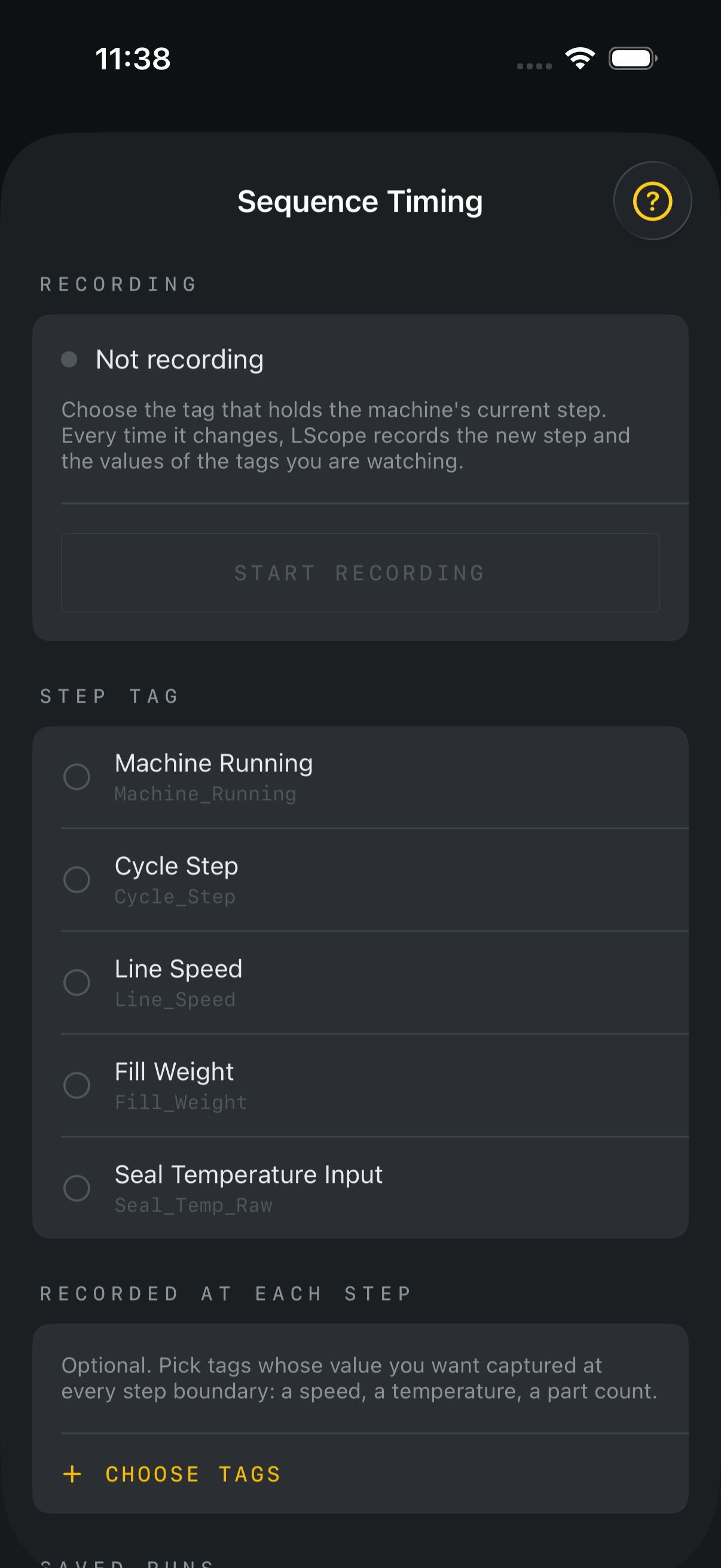
Select the numeric tag that represents the machine's current sequence step. Choose companion tags under Record With Each Step to record their values when a step change is observed. Confirm that the chosen tag actually represents the sequence you want to study.
Record a run
Connect and choose Start Recording. Keep the app in the foreground while the machine completes representative activity. Choose Stop and Save to retain the run. Timing comes from app observations; transitions between polls can be missed or timed imprecisely.
Review steps
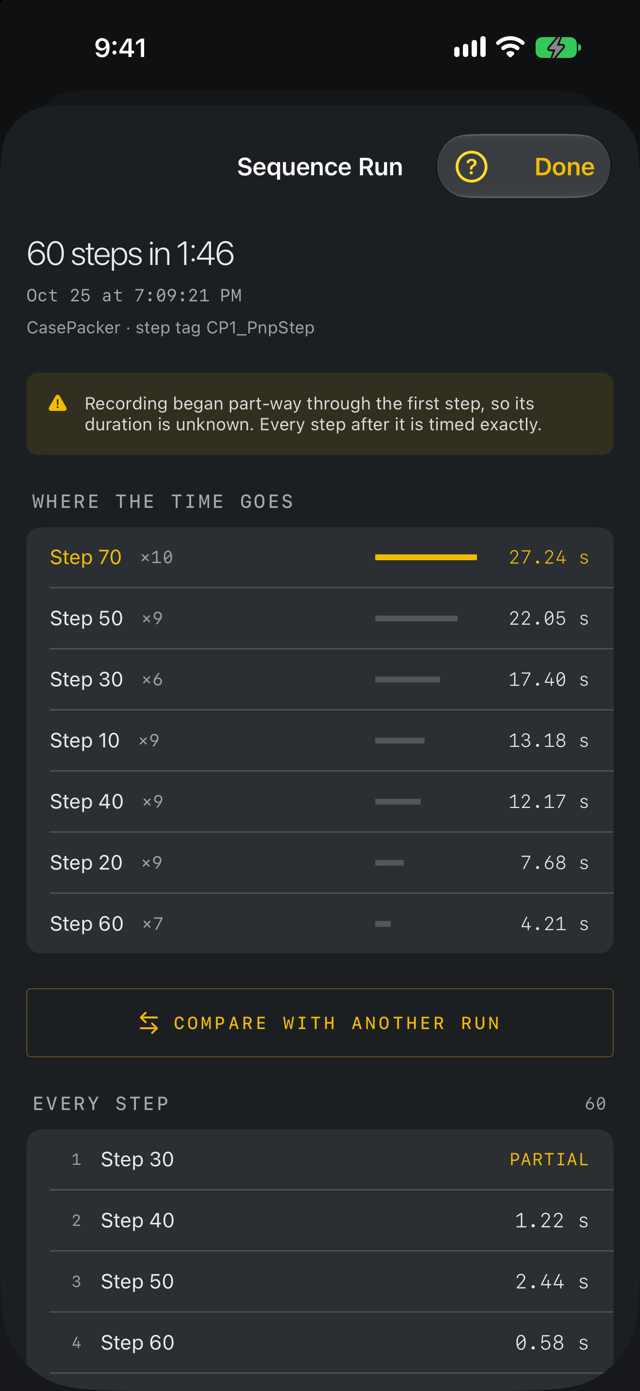
Open a saved run to inspect step durations, order and recorded companion values. An incomplete final step is different from a completed duration. Read missing-data and continuity notices before drawing conclusions.
Compare cycles
Compare Cycles needs another recording of the same sequence on that machine. Choose a suitable reference run and, if useful, mark it as the baseline. Compare both total duration and matched steps. Steps present in only one run have no directly comparable difference; blank differences are not zero.
Export and retain settings
Choose Prepare CSV, then Share CSV, to preserve a run outside the app. Step and companion tag selections are saved per machine and included in .lscope setup files. Importing a setup does not start a recording. Recorded runs are separate from reusable configuration.