Feature guide
Verification Checklist
Compare live tag values with the conditions you expect. See which configured checks are met, not met or cannot be evaluated.
Find it: Machine > Diagnostics > Verification Checklist
What this tool does
A checklist is a saved collection of expected conditions for one machine. Use it for a startup review, a machine section or a recurring problem. LScope reads the tags and evaluates your conditions while the checklist screen is open. It does not discover requirements from the controller program. All checks being met describes your selected conditions, not a machine-wide readiness or safety assessment.
Create your first checklist
Choose New Checklist and give it a recognizable name, such as Conveyor startup. Select the checklist, then choose Browse Tags while connected, or Add Check Manually. Browsing here uses the controller tag browser. Entering an address manually lets you prepare a definition before a live reading is available. Choose a readable member or bit rather than an entire structure.
Configure a TRUE/FALSE check
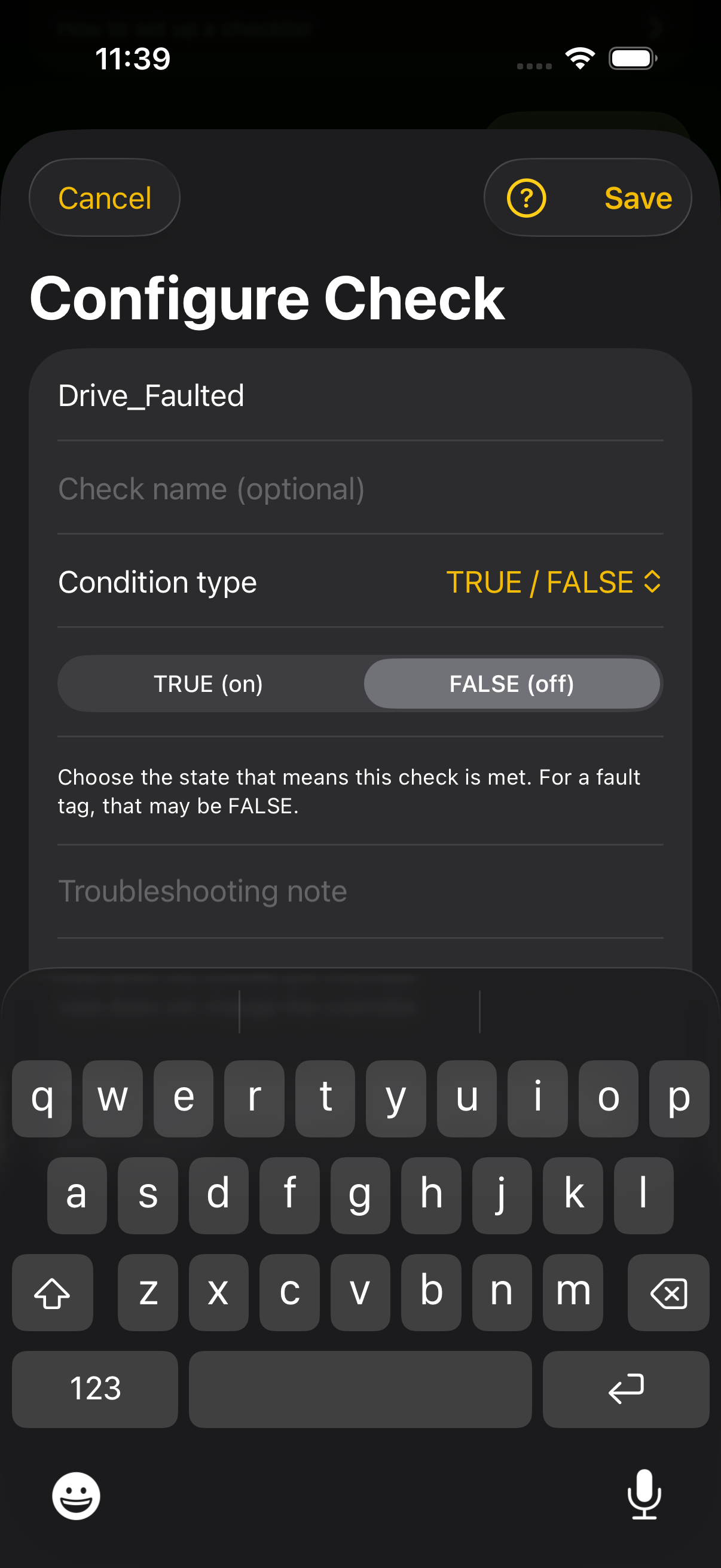
Enter the exact tag address. Add a Check name such as Drive healthy so the row explains the intent. Choose TRUE/FALSE and the Expected state. A tag named Drive_Faulted would normally be expected FALSE when checking for no fault. A tag named Air_Pressure_OK might be expected TRUE. Choose the expectation from your machine's actual definitions, not the example names. Add a Troubleshooting note describing what to inspect if the condition is not met, then Save.
Configure a numeric check
Choose Numeric comparison, then the comparison operator. Choose Fixed number and enter a number, or Another tag and enter its full address. For example, Air_Pressure >= 80 checks a minimum pressure. Actual_Count >= Target_Count compares two readings. Both tags must have fresh numeric readings. Integer comparisons are exact. Two REAL values count as equal when they differ by no more than one millionth of the expected value, or by 0.000001 when the expected value is between -1 and 1. A display unit does not convert the values.
Configure a text check
For a STRING tag, choose Text comparison, then Equal to or Not equal to, and enter the text. By default the check ignores upper and lower case and spaces at either end, so Recipe 3 matches ' RECIPE 3 '. Turn on Exact match when case and spaces matter. Browsing to a string tag starts the check with the text the tag holds now. A text check on a tag that is not a string shows Unknown.
Understand each result
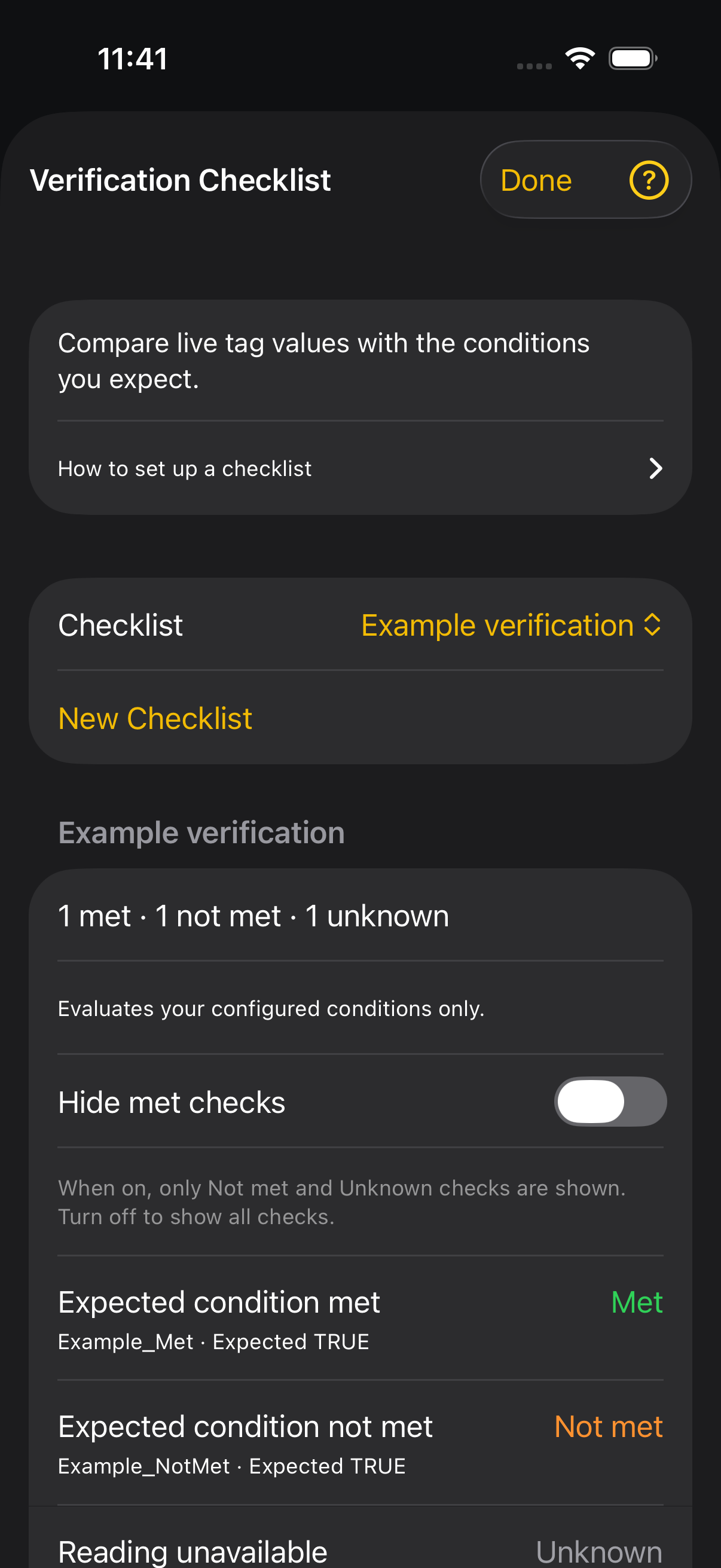
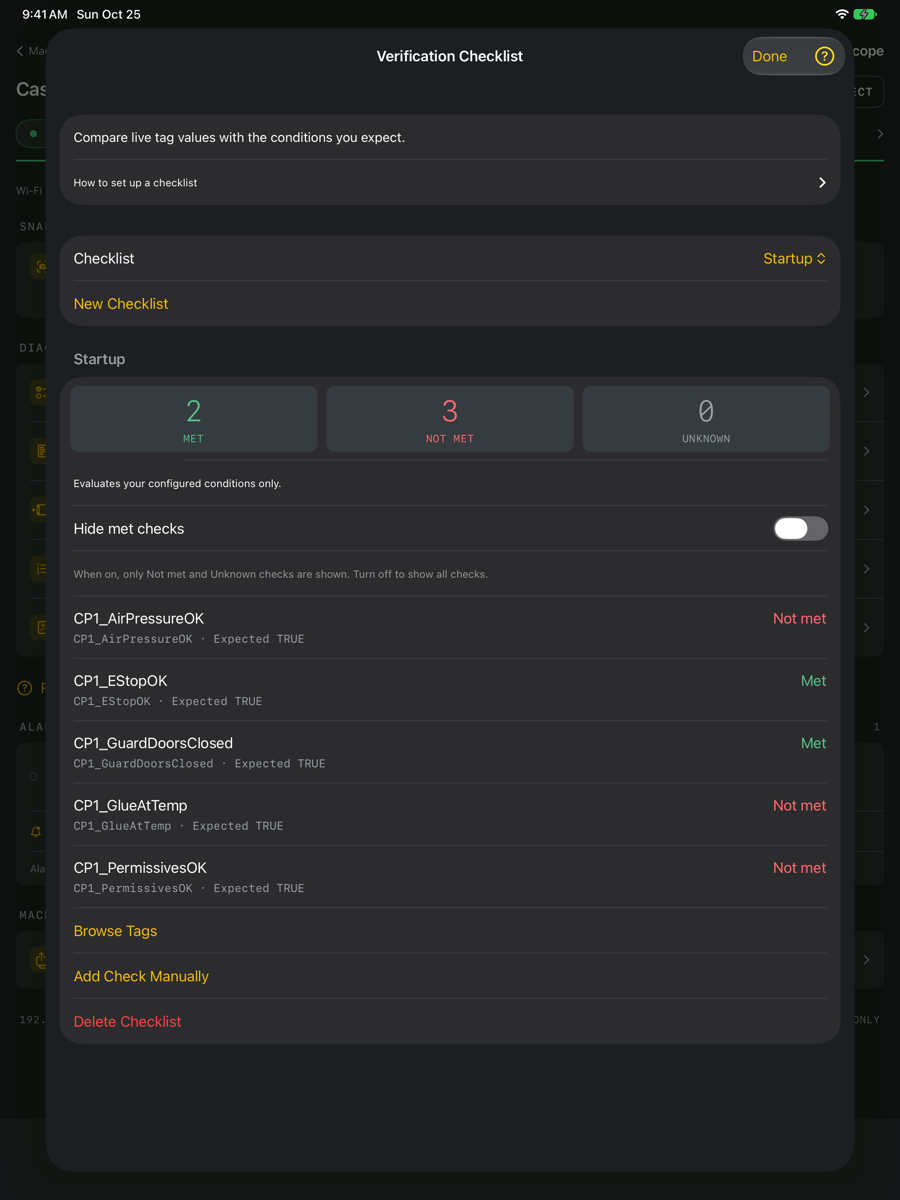
Met means the latest usable reading matches your configured expectation. Not met means a usable reading does not match it. Unknown means LScope cannot evaluate the check: it may be disconnected, waiting for a reading, missing a tag, receiving a read error, seeing stale data or using an incompatible type. Unknown is neither a pass nor a fail. The current list shows expectations and results; inspect the tag in Tags to examine its actual value in more detail.
Use Hide met checks
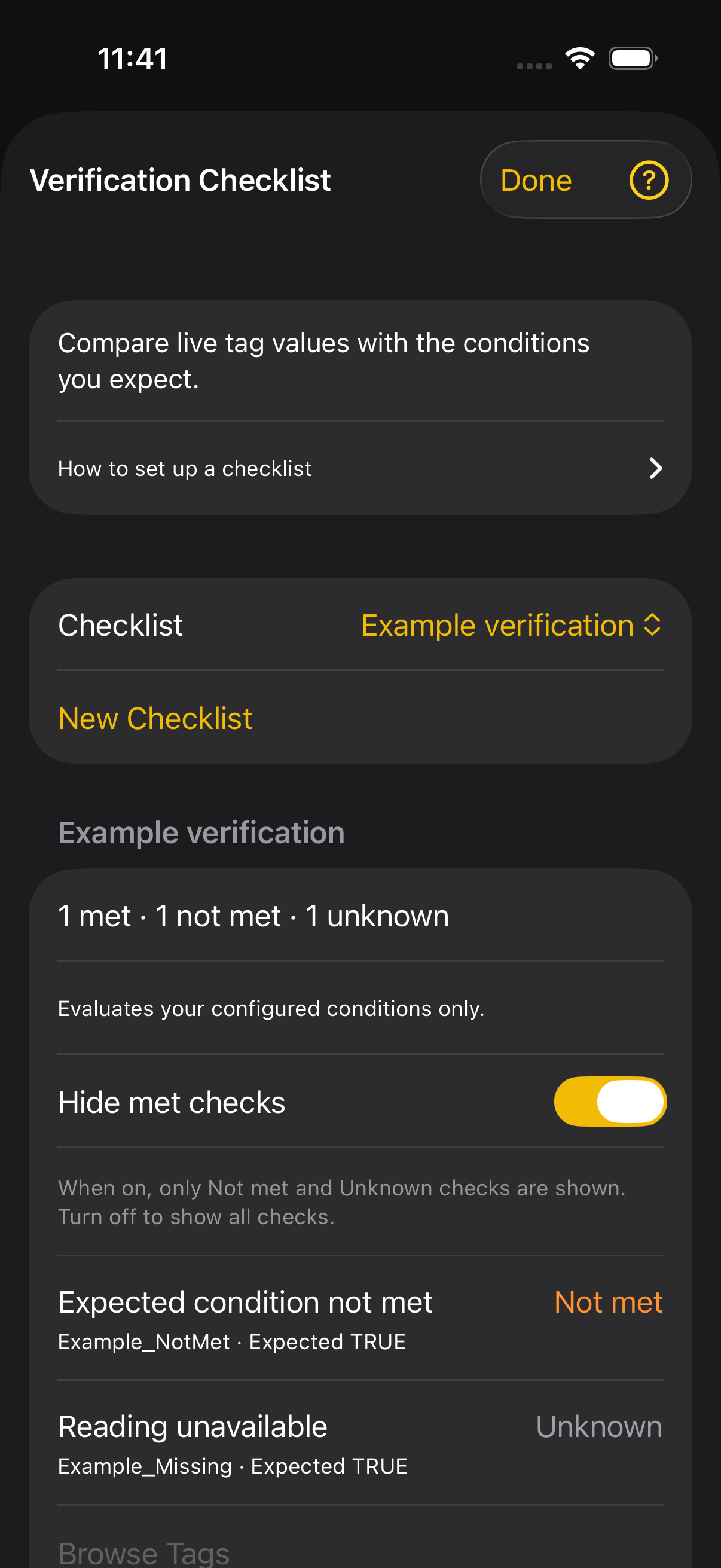
Leave this off to see every check. Turn it on to hide only Met rows. Not met and Unknown rows remain visible. This changes the view, not the saved conditions or controller values. If everything is met, the screen explains why no rows remain. If a row seems missing, turn the filter off.
Edit, save and share
Tap a check to edit it. Swipe its row to remove that check from the app. Delete Checklist removes the collection. Definitions are saved per machine and included in the machine setup (.lscope) from Export Setup. Tag-list CSV is a different format and does not contain verification checklists.
If a check is Unknown
Confirm that the machine is connected and the tag path includes the correct program, array element or bit. Verify that a BOOL check points to a BOOL or bit, and numeric comparisons point to numeric values. For another-tag comparisons, check both addresses. Allow a fresh reading after reconnecting. Do not interpret an old value or an Unknown result as confirmation that the condition is met.