Feature guide
Tag groups, labels and live trends
Organize watched tags, make their display names useful and inspect changes over time.
Find it: Machine > Tags; tap a tag for its trend
Use tag groups
A group organizes the addresses shown on the machine's Tags screen. Select the appropriate group, then Add Tags. Search and type filters narrow the visible list. If a tag appears to be missing, clear the search/filter and check the selected group.
Edit the group
Edit Tags supports selecting tags to remove or move and dragging handles to reorder. Removing a tag here changes the app's list, not the controller program. Confirm the destination group before moving a selection.
Change the display name and units
Display Name and Units lets you set a friendly display name and units for presentation. The original controller address remains the identity used for reads. A display name does not rename the controller tag, and units do not perform engineering conversion. Reset Name, Units and Notes clears this presentation customization.
Text (STRING) tags
A STRING tag, or a string type defined in Studio 5000®, shows its text in single quotes, the way Studio 5000 does, so an empty string ('') and spaces at either end are visible. Text has no trend. Tap the tag to see its full text and how many of the type's characters it uses. If the controller holds a length outside the type's range, LScope shows the characters the tag holds and says so.
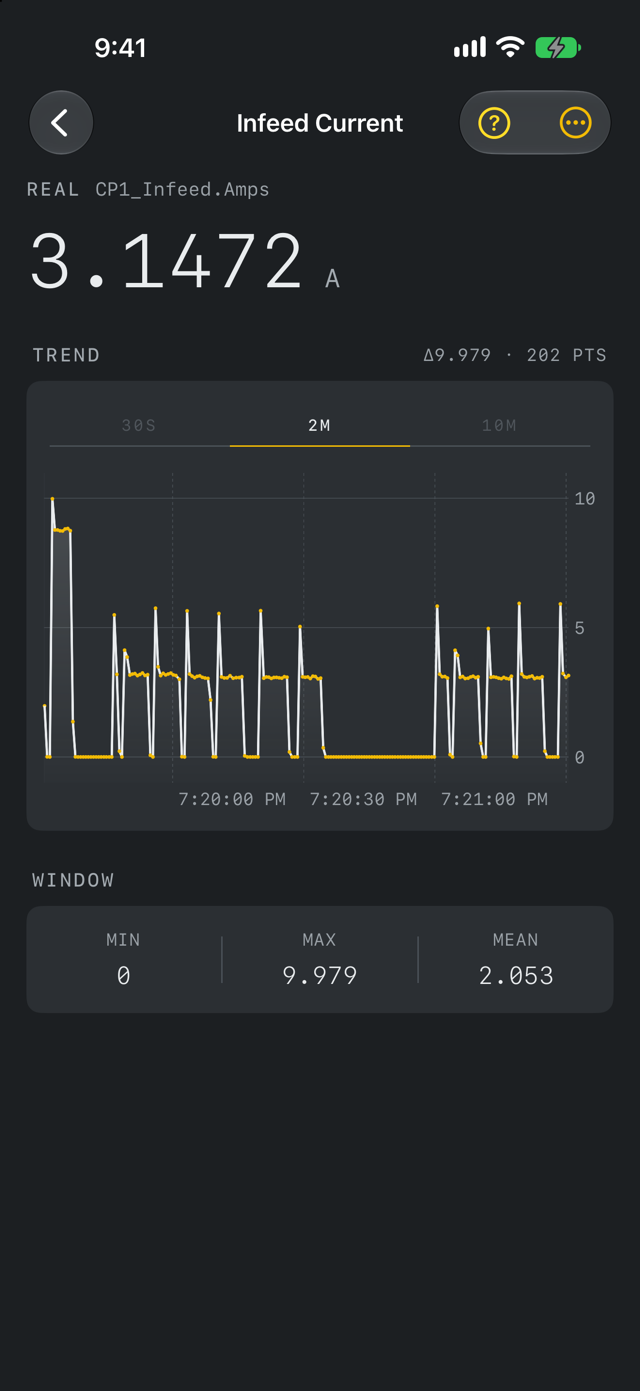
Read the trend
Tap a tag to view its time chart and choose a time window. The chart shows observations collected by the app. Missing readings are gaps, not zero. A short event can occur between polls. A flat or sparse trace is not proof that nothing happened between samples.
Export a trend
Use More (...) > Export to export the visible window. Review the selected format and preview before sharing. Keep the machine identity, time window and simulated-data markings with the report so the recipient can interpret it.